Jobs let you track the work itself, separate from the estimate or invoice, with stages, schedules, and everything tied back to a client. You can create one-time jobs or set up a recurring schedule.
Tap More > Jobs > + Create. Fill in:
Client
Title
Stage: New, Quoted, Approved, Scheduled, Completed, or Cancelled
Schedule type: One-time or Recurring
Notes and attachments (optional)
Under Schedule, toggle on or off:
Schedule later or skip scheduling for now and come back to it.
All day, toggle on if the job isn't time-specific.
If scheduling now, set a start and end date and time.
Choose Recurring as the schedule type, then set up Repeats:
Frequency: weekly, biweekly, or monthly
On weekdays (Monday–Friday) or specific days of the week
Start date
Time of day (optional)
Duration in minutes (optional)
Ends: no end date, ends on a specific date, or ends after a set number of visits
Move a job through stages as the work progresses:
Stage | What it means |
New | Just created, no action taken yet |
Quoted | An estimate has been sent to the client |
Approved | Client has approved the work |
Scheduled | Work is scheduled and confirmed |
Completed | Work is done |
Cancelled | Job is no longer going ahead |
From More > Jobs you have two views:
Jobs a list of all your jobs, filterable by stage.
Schedule a calendar view of upcoming jobs by date.
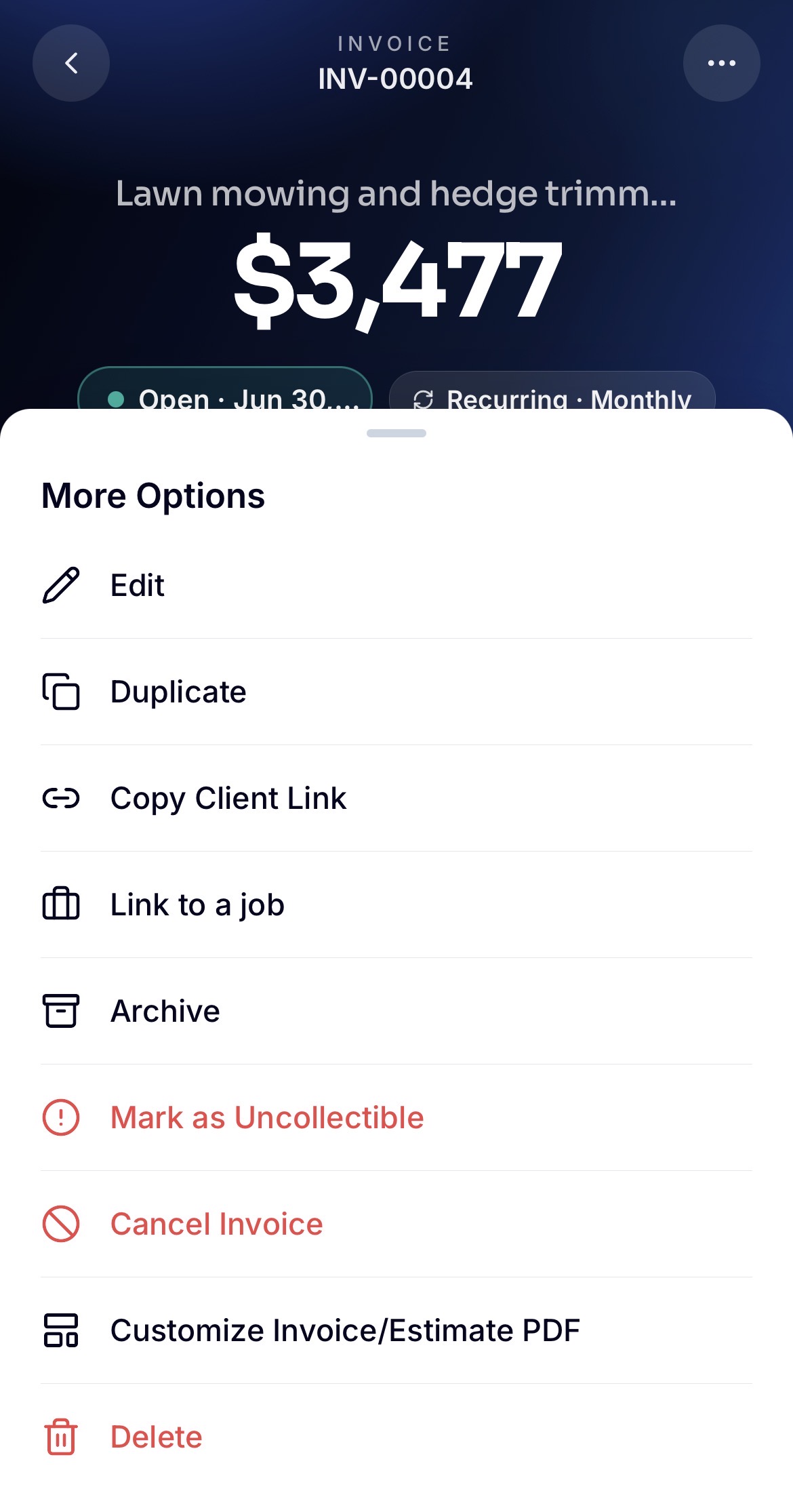
To connect a job to its related documents, open the ⋮ menu on any estimate, invoice, or recurring invoice and choose Link to a job.