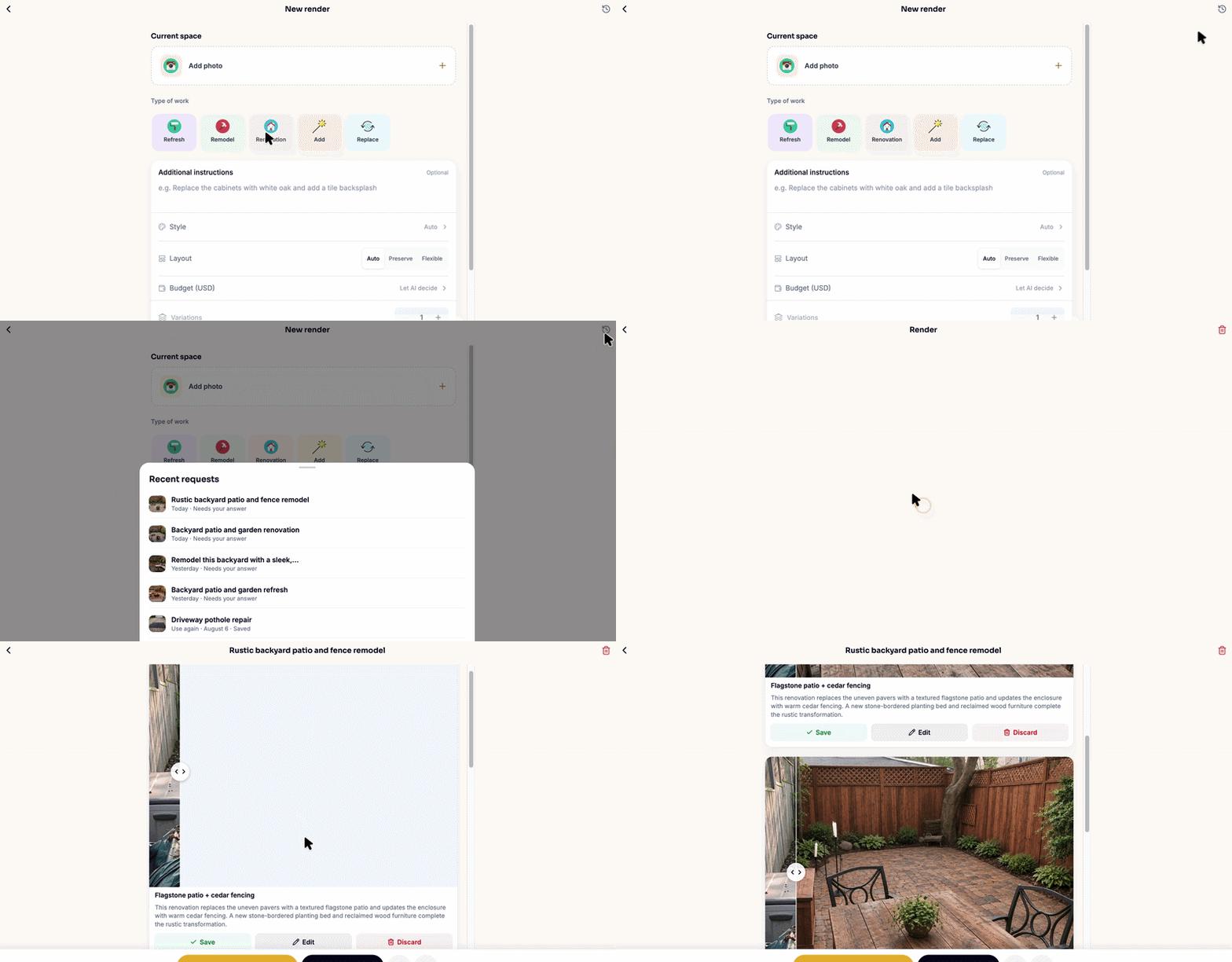
Go to AI Renders in the left menu and click the plus icon.
Add before photos. You can upload up to 6 photos of the space or site as it looks today.
Select your options such as:
Type of work: Refresh, remodel, or renovation
Style: Modern, rustic, outdoor, bathroom, kitchen, etc.
Layout: Preserve existing, flexible, or let AI decide
Budget: Set a range or let AI decide
Variations: Generate up to 3 at once (different styles, materials, or colors)
Add details (optional). Write specific instructions (for example, "white oak cabinets, quartz countertop") or upload up to 4 inspiration photos.
Click Generate render.
When renders are ready, use the before/after slider to compare. For each option, you can:
Save to keep it
Discard to remove it
Tweak to refine it and tell the AI what to change
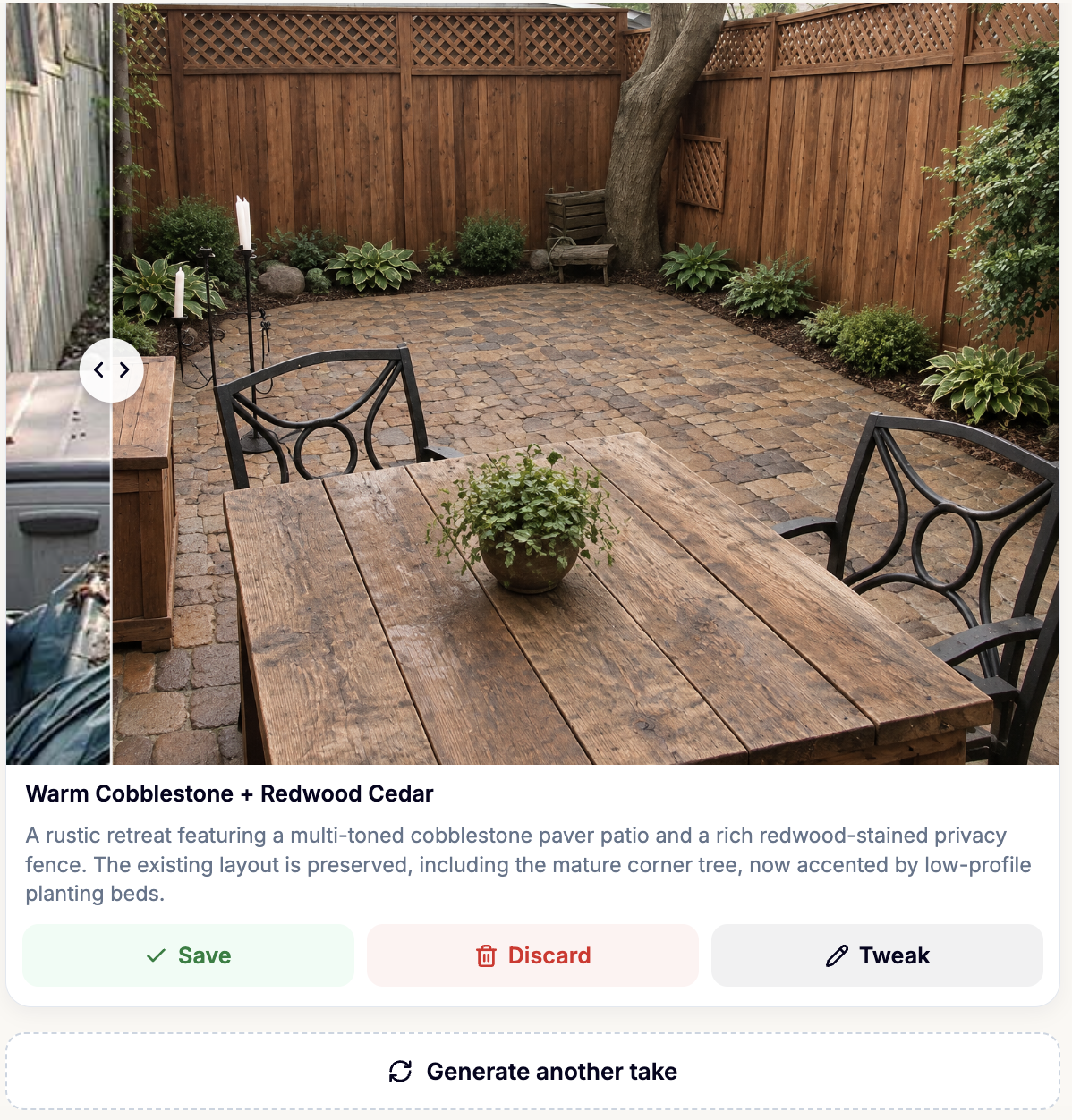
Use Generate another take to add more options (up to 4 total per render).
Top right corner has a button to view previous prompts. Use it to pull up settings from past renders and skip the setup.
From a render, tap Create estimate to start a new estimate with your before photos already attached.