Your file needs these columns:
Name (required)
Email (required)
Phone (optional)
Website (optional)
Company (optional)
Address (optional)
Notes (optional)

Tap More > Settings > Import Data, then Import Clients, and upload your file.
WinPal matches each column in your file to a field automatically and shows you the result, for example, a column called "Email Address" gets matched to Email with a confidence score. Review the mapping and fix anything that looks wrong before continuing.
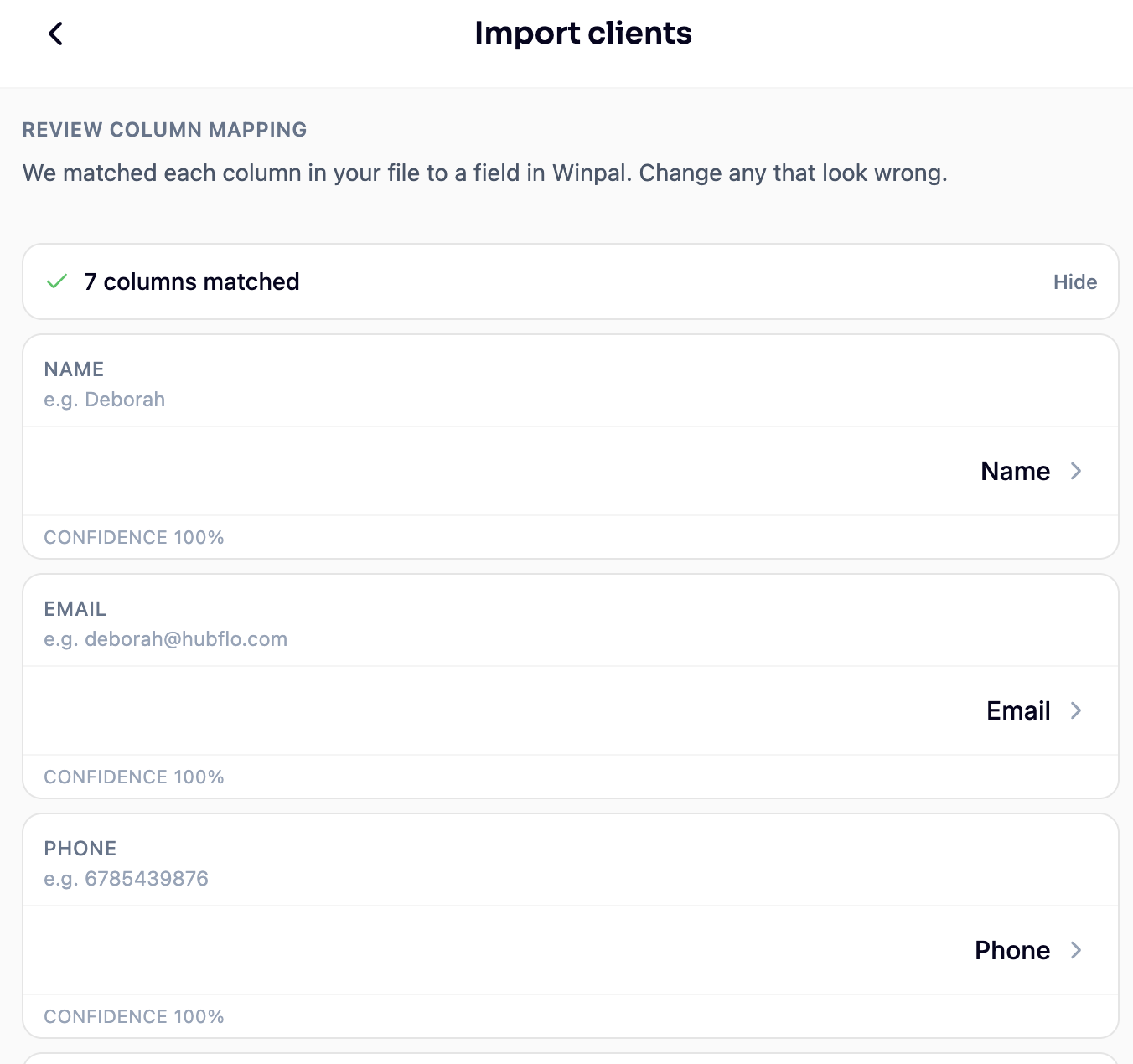
Once the mapping looks right, you'll see a summary before anything is saved:
New clients to add
Existing clients to fill in: if a client already matches one in your list, WinPal won't create a duplicate. Instead, it fills in any missing fields on the existing record.
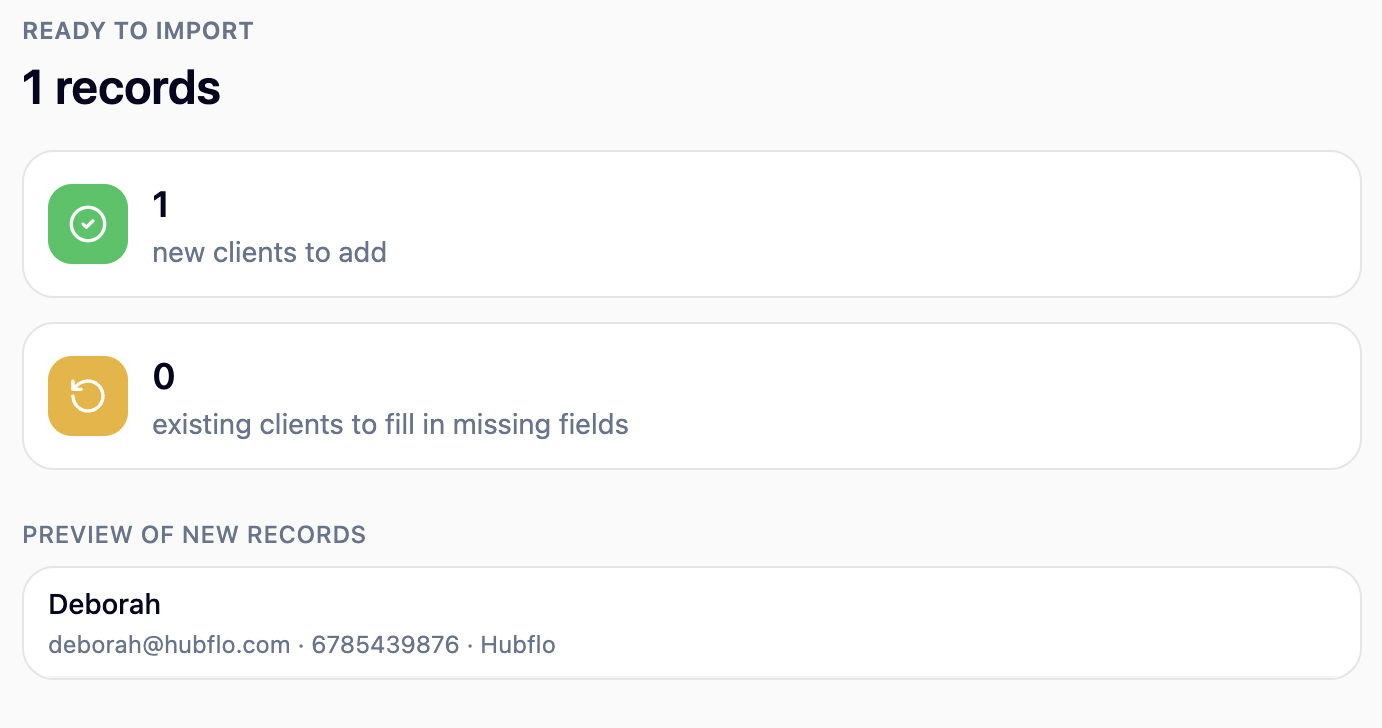
Review the preview, then confirm to complete the import. You'll get a final summary showing clients added, existing clients updated, and any rows skipped.
WinPal uses AI to match your file's column headers to the right fields. It does not touch or interpret the actual data in your rows. Every row is then cleaned and validated, and you see the preview above before anything is saved.
New to WinPal and starting from scratch? See Start Here: Set Up Your Account.